Working with Local Files
Every task you delegate in Cowork starts with source material — and most of the time, that source material lives in files on your computer. Before you hand off anything real, it's worth understanding how Claude's relationship with your files actually works.
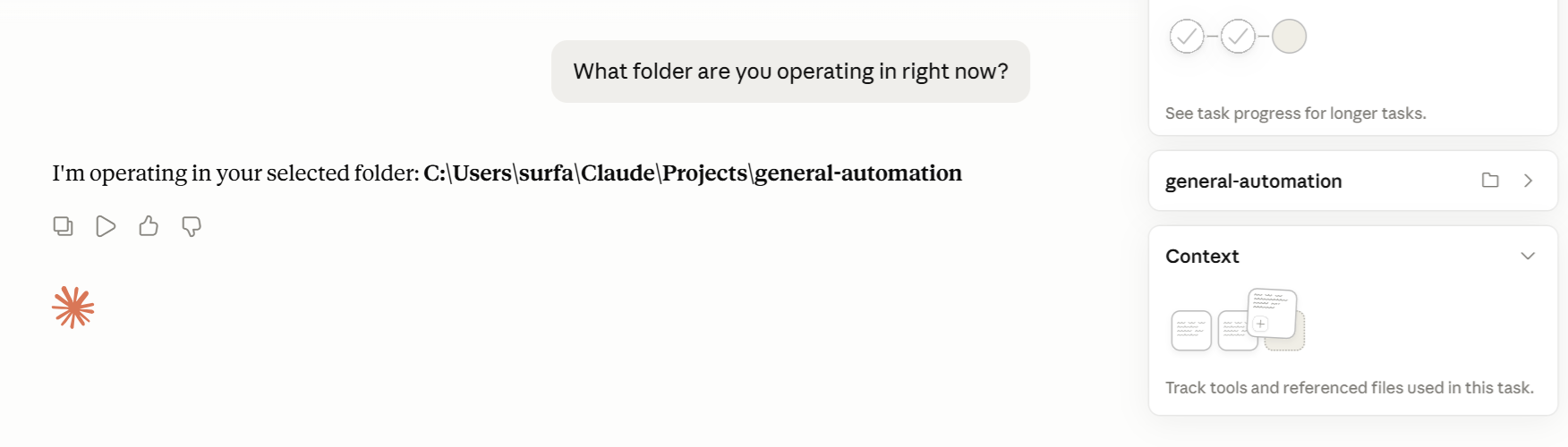
The Connected Folder
Cowork doesn't have access to your whole computer. It only sees what you explicitly open to it, which is done by connecting a folder.
A connected folder is a specific location on your computer — a folder you choose — that you're granting Claude access to. Once it's connected, Claude can read every file inside it, create new files there, and edit files you ask it to work on. It cannot access anything outside that folder. Not your desktop, not your downloads, not your other drives — nothing you haven't opened to it.
You can connect multiple folders. Many people keep one general-purpose folder connected and add others for specific projects or clients. You can also disconnect a folder at any time.
To connect a folder, open Cowork and look for the option to connect or add a folder — it takes just a moment. You'll browse to the folder you want and confirm access.
One practical tip: don't agonize over which folder to start with. Connect something you actually work in regularly, and you can always add or change folders later.
What Cowork Can Read
The short answer: almost everything you'd find in a typical office.
Word documents, PDFs, Excel spreadsheets, PowerPoint presentations — all readable. Claude reads the actual content of a file, not just its name. A 60-page contract and a one-page briefing note are equally easy for it to work with.
Images work too. If you have scanned documents, screenshots of tables, or photos of whiteboards, Claude can read what's in them. This includes JPGs, PNGs, and most other common image formats.
CSV files — the kind you'd export from a form, a database, or an HR system — are readable as well. So are plain text files and HTML files.
There are a handful of more technical file types that Cowork supports (JSON, YAML, code files, data notebooks) that are unlikely to come up in everyday office work. If someone sends you a file in one of those formats, Cowork can handle it — but you probably won't need to think about them.
What Cowork Can Create and Edit
Whatever it can read, it can produce.
When you ask Claude for a spreadsheet, you get an actual Excel file — formulas, multiple tabs, formatting — saved directly to your connected folder. Not a table pasted into a chat window that you'd have to copy somewhere. A file, in your folder, ready to open.
Same for Word documents: proper formatting, headers, numbered sections. Same for PowerPoint: actual slides, in the right structure, with the content Claude drafted from whatever source material you provided. When you ask for a PDF, you get a PDF.
If a file already exists and you ask Claude to update it, Claude edits the actual file. It doesn't create a copy or hand you text to paste in yourself. The original gets updated, or Claude creates a revised version — whichever you prefer.
This is the most important difference from AI chat tools: the output isn't text in a chat window. It's a real file, in the right format, in the right place.
What Claude Cannot See
Claude has no visibility into anything outside your connected folders. It can't read your email, browse your calendar, or access apps on your computer unless you've specifically set that up through a separate feature called a connector — something covered later in the course.
If you ask Claude to work with a file and it can't find it — because it's in a folder you haven't connected, or the filename is slightly different from what you described — it will tell you. It doesn't guess, and it doesn't silently skip things.
Knowing this also helps when a task doesn't go as expected: if Claude seems to be missing context, the most common explanation is that the relevant files are somewhere it can't see.
A Word About Tokens and Usage Limits
Before you start pointing Claude at real files, there is one concept worth having a basic handle on: tokens.
A token is roughly a word — or a word-fragment. It is the unit Claude actually works in under the hood. You do not need to count tokens, but you do need to understand what consumes them, because it affects how you think about tasks.
Everything Claude processes during a task becomes part of its working surface — called the context window. That includes the files you ask it to read, any web pages it pulls in, the instructions you have given it, and the conversation so far. It is all sitting in memory at once, the way you might spread documents across a desk to work on them. The more you have spread out, the more of your limit you are using.
This becomes practical fast. If you connect a folder and say "read everything in here," and the folder has fifty documents in it, all fifty enter the context. A folder of dense PDFs can consume a significant portion of your available tokens in a single task. You are not doing anything wrong — Claude handles it — but knowing this helps you work more deliberately: point Claude at the files that are actually relevant to the task, rather than asking it to read everything just in case.
As for limits: usage is not a single monthly bucket you empty slowly. There are shorter-interval limits — typically every five hours and weekly — after which you may need to wait or purchase additional tokens before continuing. Most normal tasks fit well within these limits. But if you run several large file-heavy tasks back to back, you can hit a ceiling sooner than expected. If Claude tells you it cannot continue right now, that is what is happening. The fix is usually to wait for the interval to reset, or to work in smaller scopes.
The main habit it suggests is simple: be specific about what files a task actually needs, rather than pointing Claude at everything and letting it sort out what matters.
Connect a real working folder to Cowork — not a test folder, something you actually use. Then give Claude this task: "Look through the files in this folder and give me a brief summary of what's here."
It won't change anything or create any files. It'll just read what's there and describe it. That's enough to confirm the connection is working and to get a feel for how Claude reads and interprets your actual content — before you hand it anything more substantial.